---
title: "How to submit your MCP to Google Connected Apps and get live"
description: "How to submit your MCP server to Google Connected Apps: prerequisites, Connected Console setup, domain verification, OAuth, testing, review and publishing."
canonical: "https://agentdisco.ai/blog/how-to-submit-your-mcp-to-google-connected-apps"
published: "2026-10-31T00:00:00.000Z"
updated: "2026-10-31T00:00:00.000Z"
author: "AgentDiscoverability"
category: "Guide"
---
# How to submit your MCP to Google Connected Apps and get live
> A step-by-step guide to getting your MCP server live as a Google Connected App in Gemini and Search: prerequisites, Connected Console setup, testing, review and publishing.
## TL;DR
- To get live as a Google Connected App you need a public MCP server, a Connected Console account, a verified domain, a finished listing, a round of testing, and a pass through Google's review.
- The process has seven steps in Connected Console: create the app, write the public details, add your endpoint and verify the domain, configure authorization, sync tools, test with real users, then send for review.
- Three decisions are permanent or hard to undo: the app category, the connection type, and the tool snapshot of every published version. Get them right the first time.
- Most rejections come from the same places: tools that fail or time out, test accounts Google cannot use, over-broad descriptions, and asking for more data than the tools need.
- Being live gets you found by name. Getting picked by Gemini and Search for relevant requests is a separate job.
**Short answer:** to submit an MCP server to Google Connected Apps, you deploy it on a public HTTPS endpoint using Streamable HTTP, sign in to Google Connected Console, create a connected app, fill in its public details, verify your domain with a file at `/.well-known/google-connected-apps`, configure OAuth if your tools need sign-in, sync your tools, test with `@gmail.com` testers, then send the version for Google's review and publish it once approved.
_Last checked against Google's Connected Apps documentation on October 31, 2026 (pages last updated October 27 to 30, 2026). Connected Apps is a preview and details may change._
### Submission at a glance
| Step | What you do | Permanent? |
| --- | --- | --- |
| 0. Apply | Request access through Google's interest form | No |
| 1. Create | Name the app, pick a category and connection type | Yes: category and connection type |
| 2. Details | Icon, description, capabilities, example prompts, legal URLs | No |
| 3. Endpoint | Enter your MCP URL and verify the domain | No |
| 4. Authorization | None, machine-to-machine or user-delegated OAuth | No |
| 5. Tools | Sync tools, set regions, languages, products and tool settings | Frozen at publish |
| 6. Test | Add `@gmail.com` testers and run your example prompts | No |
| 7. Review | Send for review, fix any issues, then publish | Published versions are read-only |
Google now lets third-party products plug into the Gemini app and Search through Connected Apps (see [what Google connected apps are](/blog/what-are-google-connected-apps) for the announcement). When someone asks for something your product does, Google can hand the task to your MCP server, inside the conversation, without the user leaving Google.
This guide walks through exactly how to get your MCP server from "it works on my machine" to live. It is based on Google's own Connected Apps documentation (the MCP developer guide, the OAuth guide, the platform policy and the Connected Console guide), plus what we see when teams optimize connectors across the major AI platforms at AgentDiscoverability.com.
**A note on status:** Connected Apps is a preview that is opening in phases, and parts of the process may change. Check Google's [Connected Apps documentation](https://developers.google.com/connected-apps) for the current version before you submit.
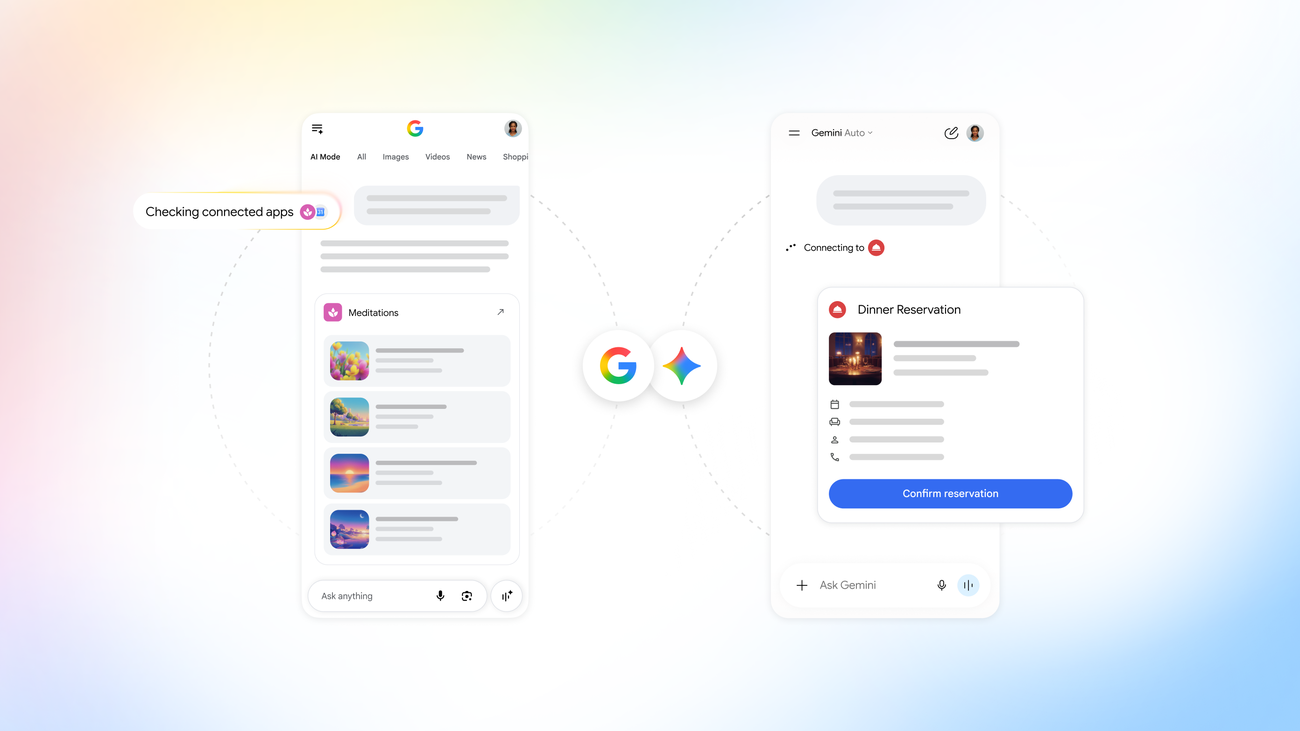
_A connected app lets Search and Gemini hand a task to your service and bring the result back into the conversation. Source: [Google](https://blog.google/innovation-and-ai/technology/developers-tools/connected-apps-one-place/)._
## What Is a Google Connected App, and What Are You Submitting?
A Google Connected App is built on a remote MCP server. You do not submit a website, a feed or an API wrapper. You register a public MCP endpoint, describe it, and let Google sync the tools it exposes.
There are two integration paths:
- **MCP server.** Google's recommended default. One server that works across web, Android and iOS. This is what this guide covers.
- **Android MCP (AppFunctions).** Deeper, on-device actions inside an Android app. It is chosen as a separate connection type in Connected Console, and you can only pick one type per connected app.
Once live, users can invoke your app explicitly by typing `@YourAppName` in Gemini, or by naming it in a request, and it stays in context for relevant follow-up prompts in that session.
Google is clear about what does not qualify. Generic signed-out information people can already get from Gemini or Search, the same read-only data you already send Google in a feed, and wrappers around APIs you do not own are all out. What does qualify: live data (inventory, prices, availability), the user's own context from your service (history, saved items), and taking action (book, order, save).
## What Do You Need Before You Submit an MCP Server to Google?
Get these in place first. Most of the delays we see come from discovering one of them halfway through Connected Console.
### Technical
- **A deployed MCP server on a public HTTPS endpoint** using the Streamable HTTP transport, for example `https://api.yourdomain.com/v1/mcp`. The legacy HTTP+SSE transport is not supported (server-sent events inside Streamable HTTP are fine).
- **One global endpoint.** Each connected app supports a single MCP endpoint. Separate data-center URLs are not supported. Country-specific domains only work if you launch exclusively in that country.
- **MCP protocol version up to 2025-11-25.** Newer specification releases are not yet supported.
- **Firewall rules for Google.** If you restrict by source IP, allowlist Google's ranges and refresh them regularly from the published lists for user-triggered fetchers and user-triggered agents.
- **The ability to host a file at `/.well-known/google-connected-apps`** on your MCP domain, served directly with HTTP 200 and no redirects.
- **Server instructions.** Your `initialize` response should include an instructions field. Connected Console warns you if it does not.
### Account
- A Google Connected Console account with either the _View Connected Apps_ or _Create and manage Connected Apps_ permission.
- An account owner or administrator who has accepted the Connected Apps Terms of Service. Invited team members cannot proceed until they have.
### Listing assets
- App name (this is also the `@` handle people type).
- Description: one sentence, under 30 words.
- Icon: 512 x 512 px, JPEG or PNG, up to 1 MB.
- At least three capabilities and at least three example prompts.
- Public Terms of Service and Privacy Policy URLs. A website URL is optional.
- For apps with user sign-in: a seeded test account with two-factor authentication turned off, plus testing instructions.
## Step 0: Get Access to Google Connected Console
Connected Apps is currently a preview, and access starts with an interest form. Apply through the link on Google's Connected Apps page, then wait to be given access. If you have a Google contact or partner engineer, tell them you applied.
Apply early. The build is the part you control, but access is the part you wait on.
## Step 1: Create the Connected App
1. Sign in to Google Connected Console and select **Create app**.
2. If prompted, review and accept the Connected Apps Terms of Service. Only an account administrator can accept.
3. Choose the **Connected app** card and give it a name. This is the name shown across Google products and the handle users type after `@`.
4. Select a **category**.
5. Choose the **connection type**: MCP server, or Android MCP.
Two of these are permanent. Your category sets the baseline capabilities your app is expected to support and cannot be changed afterwards; if you pick wrong, you have to create a new connected app. The connection type is also fixed.
Categories listed in Google's recommended user journeys include music, podcasts and audiobooks; grocery and food delivery; real estate; local services and reservations; events and ticketing; productivity; business and CRM; and small business finance, with more coming. Read the recommended journeys for your category before you choose, because they tell you which tools Google expects to see.
This opens the overview page for your connected app. It is where you will do the rest of the work: App details, MCP and tools setup, testers, and the Releases card where you send the app for review.
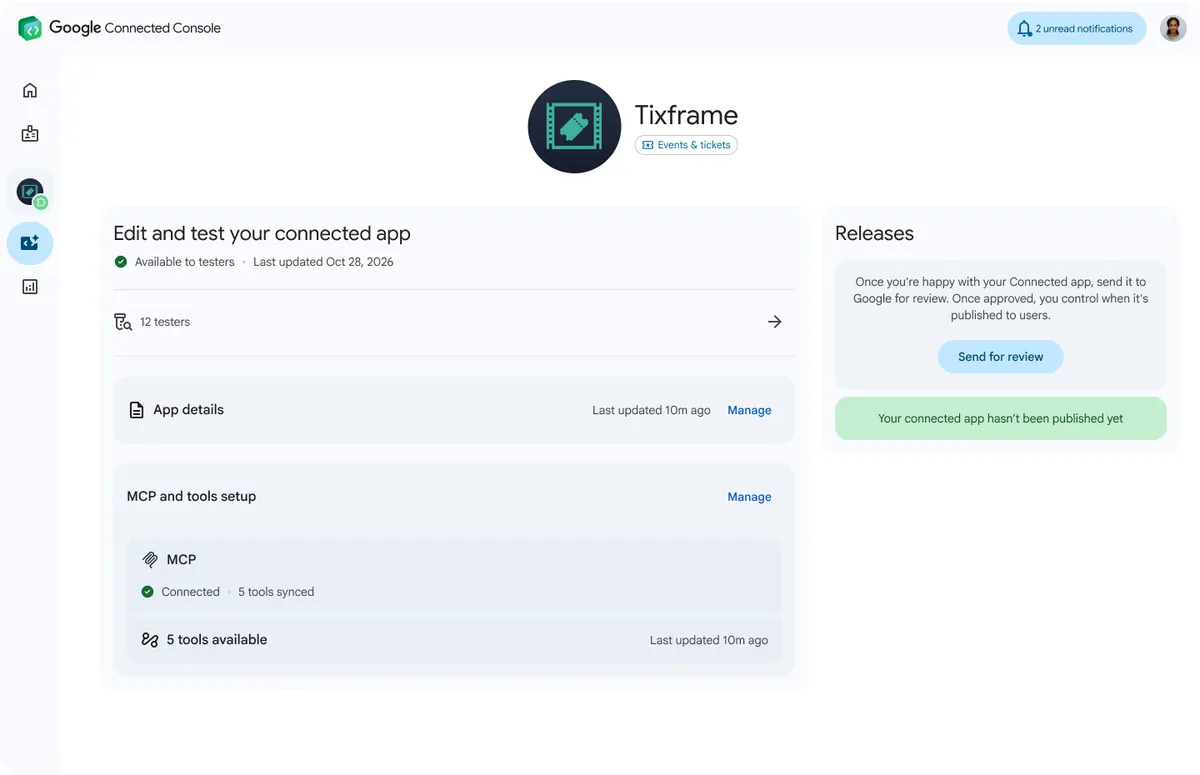
_The Connected Console overview page for a sample app: app details, MCP and tools setup, testers and the Releases card. Source: [Google](https://blog.google/innovation-and-ai/technology/developers-tools/connected-apps-one-place/)._
## Step 2: Write the Public Details
Open **App details** from the overview page. This is the part of the listing that users read when deciding whether to connect, so it is worth writing carefully. Remember that the description is shown to users and is not used as model instructions.
- **Icon:** 512 x 512 px, JPG or PNG, up to 1 MB.
- **Description:** a single sentence under 30 words that says what the app does for the user. Example from Google: "Track your recent purchases, check delivery status, and view your order history."
- **Capabilities:** at least three high-value tasks, one per entry, with no numbering at the start. If your category has predefined capabilities they appear at the top and cannot be edited.
- **Example prompts:** at least three. Start at least two with `@YourAppName`, and mention the app by name naturally in at least one that does not start with it. No numbered prefixes and no quotation marks.
- **Terms of Service and Privacy Policy URLs:** must be valid, publicly reachable links.
- **Website URL:** optional, used for attribution.
If you launch in several languages, you can localize the description, capabilities and example prompts by wrapping each locale in language tags inside the field, for example `...` followed by `...`. Connected Console reads the tags and shows which locales it detected.
## Step 3: Add Your MCP Endpoint and Verify Your Domain
Open **MCP and tools setup**, enter the full HTTPS URL of your MCP endpoint, then verify that you own the domain.
1. In the _Verify domain ownership_ card, select **Download token**. You get a file named `google-connected-apps.json`.
2. Host its contents at `https://your-domain/.well-known/google-connected-apps`.
3. Return to Connected Console and select **Verify domain**.
The file looks like this:
```
{
"verification_tokens": [
"YOUR_VERIFICATION_TOKEN"
]
}
```
The path has no `.json` extension, the response must be HTTP 200 served directly, and redirects are not allowed. If you have already verified the domain or its parent domain in your developer account, it shows as verified automatically. Verification unlocks the access credentials section below it.
## Step 4: Configure OAuth and Authorization
Next, tell Google how to authenticate with your MCP server. Connected Console asks whether your server requires authorization:
- **No.** The server is publicly accessible without authentication.
- **Yes, machine-to-machine (OAuth client credentials).** Google talks to your server directly with a shared client ID and secret, without a user sign-in.
- **Yes, user-delegated (authorization code).** Each user signs in with their own account on your service through Google Account Linking. This is the right choice for anything personal: orders, bookings, saved items, account data.
For user-delegated apps, Google recommends OAuth 2.1 with PKCE. Your authorization server needs to publish metadata at `/.well-known/oauth-authorization-server` or `/.well-known/openid-configuration`, including the authorization endpoint, token endpoint, and `code` in the supported response types. Then:
1. **Allowlist Google's redirect URIs.** Connected Console generates app-specific redirect URIs. Add them to your OAuth server before continuing.
2. **Choose how your OAuth client is registered.** Either pre-registered (a static client ID and optional secret) or Client ID Metadata Documents / Dynamic Client Registration, which Google recommends. Google checks for CIMD first and falls back to DCR.
3. **Sign in with developer credentials.** Google needs to sign in to your server to fetch tools. The pop-up flow is the default; use the redirect flow if your login page blocks framing through headers such as `X-Frame-Options`. Your choice also sets the sign-in experience for users on first use.
One tip from Google's OAuth guide matters more than it looks: manage refresh-token lifetimes with persistent linking, so users do not have to re-link their account over and over.
If your app needs sign-in, you must also give Google a seeded test account (realistic sample data, 2FA off) and testing instructions. Google says an app it cannot fully test may be rejected. An empty sandbox, a paywall or a 2FA prompt blocks review for reasons that have nothing to do with the quality of your product.
## Step 5: Sync and Configure Your Tools
Select **Sync tools**. Google calls your endpoint, reads the tool list, and takes a snapshot. This snapshot, not your live server, is what users get for that version.
Three things to know:
- **Snapshots are frozen on publish.** You can re-sync freely while the version is in preview. Once you publish, you cannot change tools, descriptions or server details for that version. Changes mean creating a new version.
- **Schemas cannot change dynamically.** Google snapshots tool names, arguments and server instructions. Changing your server's schema underneath a live version may break the integration or get the app disabled. Google suggests path-based versioning such as `/v1` and `/v2`, with a new endpoint per app version.
- **Sync with an account that can see every tool.** Tools your signed-in account cannot access are not synced.
Then set availability: the countries or regions, languages and Google products (Gemini and/or Search) where the version should be available. Review each synced tool in the _Manage tool_ panel:
- **Enable tool:** turn individual tools on or off.
- **Additional context:** choose whether a tool receives locale, approximate location (an area of 3 square kilometers or more) or precise location (within 50 meters). Do not request context without a clear need. Google warns that apps asking for more than they need may not pass review.
- **User confirmation:** require explicit confirmation before a tool runs. This is pre-selected when a tool's MCP annotations set `destructiveHint: true`.
If your server returns UI resources, there is a tab to inspect them. Google notes that MCP Apps support is in beta and UI resources may be ignored, so do not make your launch depend on them.
Before you rely on any of this, get the tools right. Google's integration standards ask for atomic, verb-noun tools (`search_restaurants`, `book_table`, not one `manage_booking` tool with an action field), flat schemas, pre-aggregated responses instead of raw database dumps, and no internal or health-check tools in `tools/list`. Servers with dozens of tools or deeply nested "mega-tool" schemas get flagged in review.
## Step 6: Test with Real Users
Once App details and MCP setup are saved, your configuration is available to the testers you add, and the version shows as _Available to testers_.
1. On the overview page, open **Add testers** and choose or create an email list.
2. Include your own address. Testers must use `@gmail.com` accounts, and it can take up to 10 minutes for the app to appear for them.
3. In the Gemini app, testers type `@` followed by your app name, or go to Settings & help, then Connected apps.
Test more than the happy path. Run every one of your example prompts, try both `@YourApp` invocations and natural-language requests that never mention you, and walk through the sign-in flow, tool execution, confirmation prompts and any UI.
Before you add testers, use **Gemini Apps Developer Mode**. It lets you test your server interactively, with an event log, tool schema view, simulated date, time and location, and authentication settings. Locally, the MCP Inspector is the quickest way to check tool payloads before you deploy anything.
## Step 7: Send for Review and Publish
1. When configuration is complete and there are no blocking issues, select **Send for review** in the Releases card.
2. Your version in review is locked. Connected Console creates a new editable draft so testers can keep previewing and you can prepare changes. You can cancel the review from the more-options menu.
3. You get a notification when review finishes. If issues are found, select **View issues**, fix them in the draft, verify with testers, and send for review again.
4. If approved, the card shows **Ready to publish**. Select **Publish** when you want to release.
Google's documentation does not give a review timeline, so plan your launch with room for at least one round of fixes.
## After You Are Live
The Releases card shows the live version, publication date and targeted countries, languages and products. To change anything, create a new version, test it on its own, and send it through review. The published version stays untouched.
Because each connected app has a single endpoint, test changes against a separate staging URL using Developer Mode, or register a second connected app and keep it in preview.
## Why Do Google Connected Apps Get Rejected?
Google's Connected Apps Platform policy is short, and it is worth reading in full before you submit. The patterns that matter most for submission:
- **Unreliable tools.** Apps that consistently return errors, crash, time out or fail authentication are prohibited.
- **Deceptive or over-broad descriptions.** Using overly broad or deceptive capability descriptions to influence the model into picking you over another app is banned. So is referencing other tools or setting rules for when they are used, and returning system instructions in tool responses. All instructions must be available at ingestion time.
- **Wrappers.** Apps that mainly pass through another platform's API that you do not own or hold rights to are prohibited. Using third-party APIs for supporting functions inside a larger product is fine.
- **Advertising.** You cannot serve third-party advertising or promotional content through your integration.
- **Data over-collection.** Tool inputs and permissions should be limited to what the tool actually needs. You also need a privacy policy that matches reality and help documentation on managing and deleting data.
- **Duplicates and spam.** Multiple apps with highly similar functionality, or content copied from other apps without added value, are not allowed.
- **Untestable apps.** No usable test account means Google cannot verify the tools.
## Common Connected Console Errors and Fixes
These are the errors Google's troubleshooting guide covers, and the fastest fix for each.
- **"The MCP server is unreachable."** Check your firewall and Google's IP ranges, make sure your gateway accepts POST requests, and check for a subdomain mismatch in your OAuth protected-resource metadata.
- **HTTP 405 (unsupported transport).** Your URL points to a legacy SSE endpoint. Point it at a Streamable HTTP endpoint that accepts POST for `initialize` and `tools/list`.
- **"The /.well-known/oauth-protected-resource file does not exist."** If your server needs no auth, make sure unauthenticated POST requests for initialize and tools/list succeed. If it does need auth, publish a valid protected-resource document that names your authorization server.
- **Missing or invalid OAuth authorization server metadata.** Host a valid discovery document at `/.well-known/oauth-authorization-server`, or enter the endpoints manually in the credentials step.
- **Domain verification fails.** Look for a 404 from a wrong path or a `.json` extension, a redirect (not allowed), or a token that does not match the one for your developer account.
- **Dynamic Client Registration or CIMD failure.** Allowlist Google's redirect URIs, or switch to pre-registered credentials or machine-to-machine.
- **Login pop-up blocked or blank.** Allow pop-ups, or switch to the redirect authentication method.
- **"Your MCP server does not have instructions."** Add an instructions field to your `initialize` response, then re-sync.
- **UI resource size or MIME type errors.** Keep total UI resources under the limit and use supported MIME types.
- **Icon upload stuck.** Try a fresh browser profile or private window, clear cache and cookies, and confirm a valid 512 x 512 PNG or JPEG.
## Live Is Not the Same as Discovered
Passing review gets you into Google's Connected Apps. It does not mean Gemini or Search will pick you.
There are two ways users end up using your app. By name: they find you in the app list or type `@YourApp`. By routing: the model decides your app fits the request and suggests it. Being live covers the first. The second depends on how clearly your server instructions, tool names, tool descriptions and schemas tell the model what you are for, and on how reliably your tools work once called.
That is a separate discipline, which we call Agent Tool Optimization (ATO). We cover the practical side in [our tips for getting your Gemini MCP connected app discovered and used](/blog/tips-to-get-your-gemini-mcp-connected-app-discovered).
If you want help building, submitting or optimizing a connected app across Google, ChatGPT, Claude and other agent stores, [book a call with our team](/get-a-demo), or [sign up to the platform](https://app.agentdisco.ai/signup) to see where your product surfaces today.
## Related reading
- [10 tips to get your Gemini MCP connected app discovered and used by Google](/blog/tips-to-get-your-gemini-mcp-connected-app-discovered)
- [What are Google connected apps?](/blog/what-are-google-connected-apps)
- [What is Agent Tool Optimization (ATO)?](/blog/what-is-agent-tool-optimization-ato)
- [Google's Connected Apps documentation](https://developers.google.com/connected-apps)
## Frequently asked questions
Quick answers on submitting an MCP server to Google Connected Apps.
How do I submit my MCP server to Google Connected Apps?
Deploy your MCP server on a public HTTPS endpoint, get access to Google Connected Console, create a connected app, add its public details, verify your domain, configure authorization, sync your tools, test with `@gmail.com` testers, then send the version for review and publish it after approval.
What do I need before submitting?
A public MCP server using Streamable HTTP, a Connected Console account with the right permissions, an administrator who has accepted the Connected Apps Terms of Service, the ability to host a file at `/.well-known/google-connected-apps`, a 512 x 512 px icon, a description under 30 words, at least three capabilities and three example prompts, and public Terms of Service and Privacy Policy URLs. Apps with sign-in also need a seeded test account with two-factor authentication off.
Which MCP transport and protocol version does Google support?
Streamable HTTP, with a single HTTP endpoint that accepts POST requests. The legacy HTTP+SSE transport is not supported, although server-sent events inside Streamable HTTP are. Google supports MCP specification versions up to 2025-11-25.
How does domain verification work?
Connected Console gives you a token file named `google-connected-apps.json`. You host its contents at `https://your-domain/.well-known/google-connected-apps`, served directly with HTTP 200 and no redirects, then select Verify domain.
Can I change my app category after creating the app?
No. The category sets baseline capability requirements and cannot be changed. To use a different category you must create a new connected app. The connection type (MCP server or Android MCP) is also fixed.
Who can test my app before it is published?
Only testers you add in Connected Console, and testers must have `@gmail.com` accounts. It can take up to 10 minutes for the app to become visible to them. In Gemini they type `@` followed by your app name.
Can I update my tools after publishing?
Not on the published version. Google snapshots your tool list, arguments and server instructions, and the snapshot is frozen when you publish. To change tools, create a new version, test it, and send it for review. Google recommends versioned endpoints such as `/v1` and `/v2`.
How long does Google take to review a connected app?
Google's documentation does not state a review time, so plan for at least one round of fixes. If issues are found, Connected Console shows them and you can resubmit after fixing your configuration or server.
Does being live mean Gemini will recommend my app?
No. Being live means users can find your app by name, for example by typing `@YourApp`. Having the model pick your app for relevant requests depends on how clearly your server instructions, tool names, descriptions and schemas describe what you do, and on how reliably your tools work. See our [tips for getting discovered](/blog/tips-to-get-your-gemini-mcp-connected-app-discovered).