
- Brand
- Aleph
- Category
- Data & Analytics
- Primary Subcategory
- Financial Planning & FP&A Analytics
Integration details
Description
With the Aleph MCP Server, you can: - Plug into a governed source of truth for clean, structured cross-system data from 200+ integrations:ERP, CRM, HRIS, spreadsheets, data warehouse, and more - Ask questions in plain language, build reports, and run analyses, with every output traceable back to your source of truth - Power automations across Slack, Linear, and your other tools
- Integration type
- Plugin
- Verification status
- Not applicable
- Platform
- ChatGPT
- Primary Subcategory
- Financial Planning & FP&A Analytics
- Secondary Subcategories
- None listed
- Brand
- Aleph
- Access
- Account required
- First tracked
- 2026-08-06
- Tool count
- 172
- Market
- US
The Primary Subcategory used for this profile’s headline score.
Other Subcategories where the Integration is listed.
 Agent Discoverability
 ChatGPT Plugin Discovery Score
Your score is coming
ChatGPT now suggests Plugins on its own when they match a user's request.Your Plugin Discovery Score measures how often yours appears, and it will show here as soon as it’s ready.
What discovery looks like
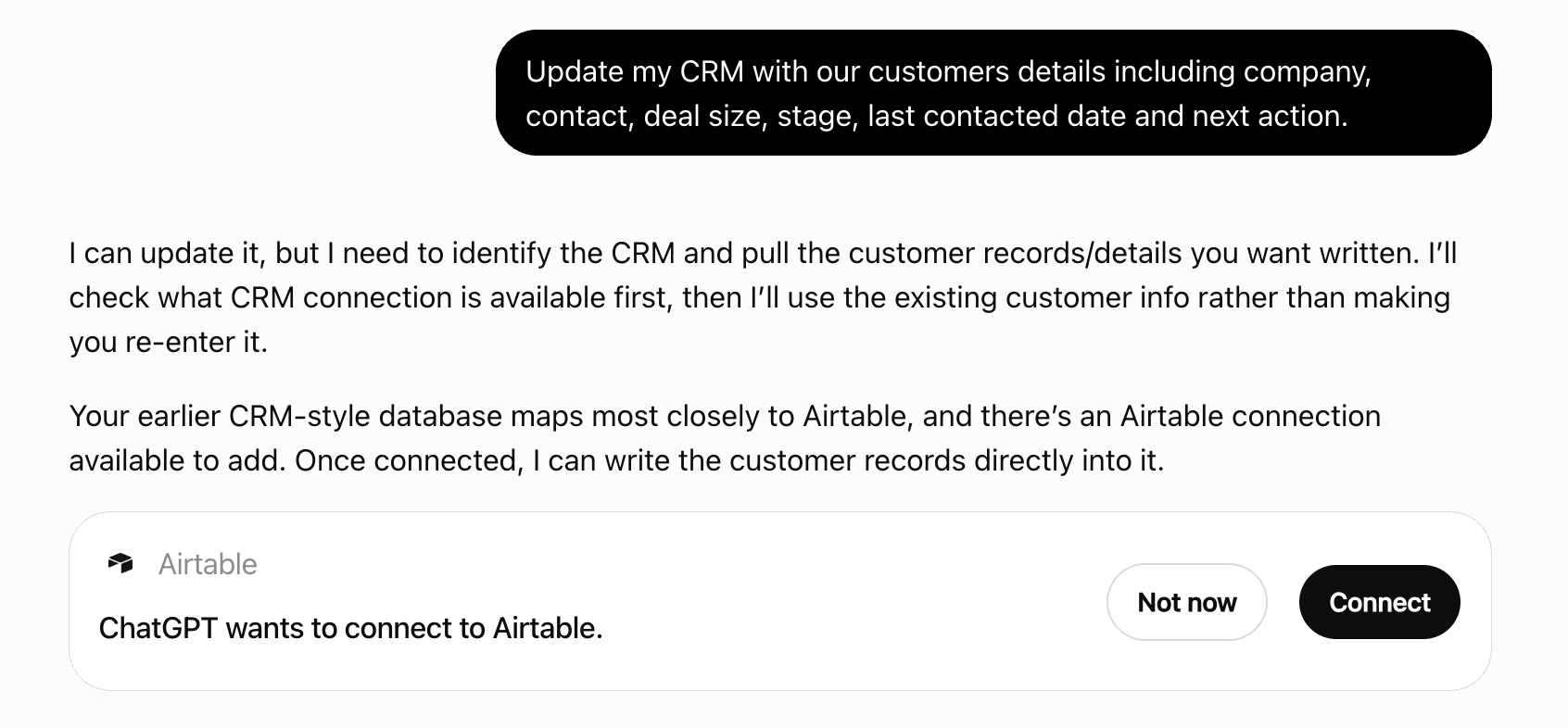
Get alerts for Aleph
Get updates when Aleph’s Discoverability Score or category rank changes.
Competing in ChatGPT Financial Planning & FP&A Analytics
View Category172 tools agents can invoke
Instantiate a dashboard from a template. Requires templateId and tableIdMap (array of {sourceTableId, targetTableId} objects). Dimensions with the same name in source and target tables work automatically. For dimensions with DIFFERENT names, you MUST provide dimensionIdMap — use the suggested dimension mappings from get_template. Optional: filterValueMap to override filter values, variableValueMap to override variable values. Optional: dashboardId to inject template pages into an existing dashboard instead of creating a new one. Use get_template with a templateId first to discover source tables, suggested mappings, filters, and variables. For unmapped tables, use list_tables to find candidates and confirm with the user. Review filters and variables with the user before applying — use defaults or ask for overrides based on context. [Beta tool]
apply_template
Empty a range of an enabled spreadsheet. `scope` decides what goes: `contents` removes the values and formulas but leaves the formatting, `formats` removes the formatting but leaves what the cells say, and `all` removes both. It defaults to `contents`, which is almost always what is meant. Clearing does not shift anything: the cells stay where they are and become empty. Nothing below moves up. Read the range first with `get_spreadsheet_range` so you know what you are clearing. Aleph cannot undo this. Call `list_spreadsheet_versions` BEFORE writing and keep the newest version's id: only Excel records which versions Aleph wrote, so on a Google Sheet that id is the only way to find the state from before the write afterwards. Then use `compare_spreadsheet_versions` against it to show exactly what changed, and name that version as the one to go back to — restoring it is done in the file itself, under File > Version history in Google Sheets or Version history in SharePoint. Write in as few calls as you can: SharePoint keeps a limited number of versions and drops its oldest to make room, so writing in a loop can cost a customer real history. [Beta tool]
clear_spreadsheet_range
Show what changed between two versions of an enabled spreadsheet. Call `list_spreadsheet_versions` first for the version ids, or pass an id you kept from earlier — any version the provider still holds works, including one older than that listing reaches. Order does not matter: the older of the two is treated as the before. Returns the tabs that were added or removed, and the cells that differ with what each one held before and after. A cell holding a formula is compared on its formula, so this is how to check whether an edit left a formula broken or pointing at the wrong range. Lists up to 50 changes. Use it after writing to a spreadsheet to confirm what the write actually did, and to tell a user what changed in a file since a point they care about. Comparing a whole workbook reads both versions in full, so pass `sheetName` when you know which tab matters. Only cell contents and the set of tabs are compared: a change to a chart, a pivot table, conditional formatting, a validation rule, a number format, a cell note or a hyperlink target does not show up. [Beta tool]
compare_spreadsheet_versions
Diff two versions of an Aleph Table. Returns the rows whose value differs (or exists in only one version) across the two versions, with a computed status (Added / Removed / Modified) that cannot be used in `filters`. Zero is a value: a row present in only one version with value 0 is Added or Removed; a value moving from 0 is also labelled Added and one moving to 0 Removed. Use `list_table_versions` first to obtain version IDs — both versions must be on the table's current schema. Output is rendered as a markdown table capped at 50 rows; use `filters` to narrow the diff if there are more changes than fit. Only applicable to Aleph Tables — does not apply to Integration Tables, Calculated Tables, or Data Warehouse Tables (direct connects).
compare_table_versions
Put an existing dashboard block on a page — either by duplicating it (`copy`) or by relocating it (`move`). This tool changes WHICH PAGE a block sits on. It never changes what the block shows, or its position within a page. Use `manage_block` to edit a block's contents, and `manage_dashboard` to reposition or resize a block already on its page. To remove a block from a page entirely, use `delete_block`. The response confirms the placement and returns the block's id, name and location — it does not include the block's configuration or data. Use `get_block` if you need to read those back. [Beta tool]
copy_or_move_block
Delete an agent automation permanently. It stops running and is removed from the workspace. This cannot be undone, and the agent itself is not affected. Look it up with `get_workspace_agent` first and tell the user its name and when it runs. To stop an automation without deleting it, pause it with `manage_agent_automations`. [Beta tool]
delete_agent_automation
Remove a server from the workspace's allowed MCP connectors. Every member's connection to it, credentials included, is deleted with it and cannot be recovered; members connected to it lose access. Show the user which server this is and that other members are affected before calling this. [Beta tool]
delete_allowed_mcp_connector
Delete an automation permanently. It stops running and is removed from the workspace. This cannot be undone. Before calling, look the automation up with `list_automations` and tell the user its name, source, and triggers, even when the deletion was directly requested. To stop an automation without deleting it, pause it with `manage_automations`. [Beta tool]
delete_automation
Delete a dashboard block. Pass `blockId` and `pageId`. Removes the block from that page's layout; the underlying block remains, though a feed block left on no page loses its schedule. Use get_dashboard to find page IDs. You MUST show the user the exact changes. [Beta tool]
delete_block
Delete a calculated item from a dimension of a table (Aleph or integration). Requires `tableId`, `dimensionName`, and `itemId`. Use `get_table` for the technical dimension name and canonical tableId, and `list_calculated_items` to find the itemId. This tool is destructive. Always show the user the exact item being deleted. [Beta tool]
delete_calculated_item
Delete one check and its run history. A check is a data integrity verification that runs a query against a table and reports whether the check passed (no rows matching the query were found) or the check failed (some rows matching the query were found). Before calling this tool, use `get_check` to read the check and tell the user exactly what will be deleted: the check's name, the table it runs against, and whether it has an alert associated with it. Then stop and ask for explicit confirmation. This cannot be undone. Deleting the check also deletes its run history. If the check has an alert configured, the people or channel receiving that alert stop being notified, and Aleph does not send them a message saying the alert was removed. [Beta tool]
delete_check
Delete a custom skill by name. Use list_custom_skills to find skill names.
delete_custom_skill
Permanently delete a dashboard together with every page on it. This cannot be undone. Only the dashboard owner or a workspace admin can delete a dashboard; someone who can edit it through a share cannot. To remove a single page or section instead, use `delete_dashboard_page` or `delete_dashboard_section`, respectively. Call `get_dashboard` right before deleting and show the user the dashboard name and the pages that go with it, in plain language, even when the deletion was directly requested. [Beta tool]
delete_dashboard
DEPRECATED: this tool will be removed soon. Call `delete_spreadsheet_connect` with the block's ID as `spreadsheetId`, `type: "block"` and the same `connectId`. Delete a connect from a dashboard custom-data block. The data already pulled stays in the sheet as static values. Note: this tool is only for connects on dashboard custom-data blocks, not for connects living on Spreadsheets (Excel / Google Sheets). Use `get_block` to see the connects on a block and their IDs. You MUST show the user exactly which connect will be deleted. [Beta tool]
delete_dashboard_custom_data_connect
Delete a dashboard page. Use get_dashboard to find its ID. If no page is left, an empty page is added. To delete a section, use delete_dashboard_section. To delete the whole dashboard, use delete_dashboard. [Beta tool]
delete_dashboard_page
Delete a dashboard section. Use get_dashboard to find its ID. If no page is left, an empty page is added. To delete a single page, use delete_dashboard_page. To delete the whole dashboard, use delete_dashboard. [Beta tool]
delete_dashboard_section
Remove a workspace color palette or a workspace table theme by name. Built-in palettes and themes cannot be removed. List existing names first with `list_dashboard_themes_and_colors`; a name that matches nothing is refused. Older workspaces can hold two entries under one name, and that name is refused too — the user has to rename or remove the duplicate on the workspace settings page first. To create, replace, or rename an entry, or to set the workspace defaults, use `manage_dashboard_theme`. Show the user the exact theme name and what will change in plain language, even when the deletion was directly requested. If the workspace default points at the deleted theme, it resets to Aleph's default. That change applies to every dashboard that relies on the default. Blocks that named the deleted theme fall back the same way. [Beta tool]
delete_dashboard_theme
Permanently delete a dimension and all of its values, unlinking it from every table that uses it. Identify it by id (from list_dimensions or get_dimension). This is destructive and cannot be undone: always show the user exactly what will be deleted - the dimension name and how many tables use it (call get_dimension first). Describe the impact in plain, non-technical language. [Beta tool]
delete_dimension
Permanently delete one value from a dimension. In a hierarchy, only values at the lowest level can be deleted. Any higher-level values left with no values beneath them are also removed. Source values matched to the deleted value move to "Needs Review" for review. You cannot delete "Needs Review" itself. Linked tables may refresh or have rows containing the deleted value removed. These changes may take time to appear. The result explains any problems updating tables and how to address them. Identify the value by id (from list_dimension_values). This is destructive and cannot be undone. Show the user exactly which value will be deleted and what will happen to any source values or linked table rows. [Beta tool]
delete_dimension_value
Delete exchange rates. Pass one entry per rate, up to 100 in a call. This is a heavy write that changes downstream numbers. Show the user the exact rates you are about to delete. Find them first with `list_exchange_rates`. If any entry does not match a rate, nothing is deleted and the response names every entry that did not match. [Beta tool]
delete_exchange_rate
Delete a folder. As part of this operation, the folder's contents are not deleted: they are archived and moved to an archived folder. Returns how many tables were archived. The Aleph UI labels this action "Archive folder", so a user asking to archive a folder means this tool. Before calling, check what the folder contains (each table in `list_tables` shows its folder) and tell the user what will be moved to the archived folder. `list_tables` omits hidden integration tables, which are archived along with everything else in the folder, so the count you get here may be higher than your check showed. That is expected, not an error. [Beta tool]
delete_folder
Permanently delete an integration. It is disconnected from its source, and its tables are removed along with their data checks, transformations, dimensions, dimension values and permission grants. Dashboards, calculated tables and automations that use these tables are not deleted, but they stop working. This cannot be undone. Before calling, look the integration up with `get_integration` and tell the user its name, that its tables and their data checks will be deleted too, and that anything built on those tables stops working. Use plain, non-technical language. [Beta tool]
delete_integration
Disconnect one of your MCP connectors from the Aleph agent. Your credentials for it are deleted, so adding it back means signing in again, and this cannot be undone. Show the user the connector's name before calling this. Only your own connections can be removed; an admin removes a server for everyone with `delete_allowed_mcp_connector`. [Beta tool]
delete_mcp_connector
Permanently delete a mapping and all of its rules, detaching it from any transformations that use it. Identify the mapping by its ID (from `list_mappings`). Note: this deletes the ENTIRE mapping. To simply detach a mapping from a specific table while keeping the underlying mapping around, use `delete_table_custom_column` instead. If there is any ambiguity, clarify with the user their intent. [Beta tool]
delete_mapping
Remove rules from a mapping by exact `when` match. Inspect rules with `list_mapping_rules` first to confirm what you intend to remove. Deletion is permanent unless the mapping feeds a dependent transformation. When it does, a rule whose `when` value still appears in the source data comes back as pending once those transformations re-run, because every live source value needs a rule — so the mapping returns to `pending` rather than losing the row, and deletion only sticks for values that are gone from the source. That rerun is started but not awaited, so the response tells you whether one was scheduled, not what it concluded: call `list_mapping_rules` afterwards if the user needs the settled state. Show the user the exact changes. [Beta tool]
delete_mapping_rules
Stop tracking a spreadsheet in Aleph by removing it from the Aleph workspace's list, and optionally delete the file on the platform itself. `disable` only removes Aleph's record of the file. The spreadsheet itself is not deleted on the provider side. Enabling the same file link restores the entry. Once a spreadsheet has been disabled in Aleph, Aleph can no longer reach it unless the spreadsheet is re-enabled. That includes deleting the file on the provider. `delete_file` moves the file to the trash on the platform and then removes Aleph's record. A Google Sheet has to be in the shared drive the workspace connected, and an Excel file in the Aleph folder on the connected SharePoint site; `get_current_workspace` names both. Before calling this tool, present the user with both operations, explain clearly what each operation does, and get clear confirmation regarding which operation the user wants to execute. Before calling this with `delete_file`, tell the user in plain language which file is about to be deleted and that it goes to the platform's trash. Needs "Can edit" on the file, which `list_spreadsheets` and `get_spreadsheet` report under Your access. [Beta tool]
delete_spreadsheet
Delete one Aleph Connect from an enabled spreadsheet or a custom data block. On spreadsheets, Google Sheets only. For a custom data block, pass the block's ID from `get_block` with `type: "block"`, and the Connect's ID from that block's connects in `get_block`. The cells keep their values: what goes is the binding to the Aleph table, so the numbers stay on the tab as ordinary data that no pull refreshes. On a spreadsheet, Aleph cannot undo it, and rebuilding means creating the Connect again and rebinding every band. On a custom data block, restoring the dashboard's previous version brings it back. Before deleting, read the Connect so you can tell the user what it binds and where, and say whether it can be undone: with `list_spreadsheet_connects` for a spreadsheet, or with `get_block` for a custom data block. To change what it reads instead, use `manage_spreadsheet_connect`. [Beta tool]
delete_spreadsheet_connect
Delete a named range. This removes the name only. The cells and their contents stay exactly as they are. IMPORTANT: Every formula that refers to the name stops resolving and shows `#NAME?`, anywhere in the spreadsheet, including formulas nobody is looking at. List what is there with `list_spreadsheet_named_ranges` and tell the user which name you are about to remove and where it points. To point a name somewhere else, use `manage_spreadsheet_named_range` with `update` instead. Deleting and recreating breaks the formulas in between. An Excel workbook can hold the same name once for the whole workbook and once for a single tab. When it does, this refuses to guess and tells you which scopes it found; put the choice to the user, then call again with `scope`. [Beta tool]
delete_spreadsheet_named_range
Delete a tab from a spreadsheet. This is the most destructive thing an agent can do to a spreadsheet, and nothing here can undo it. The tab's cells, formulas, formatting, charts and any names scoped to it go with it, and every formula elsewhere that reads from the tab starts showing `#REF!`. Only the file's own version history can bring it back. Aleph cannot undo this. Call `list_spreadsheet_versions` BEFORE writing and keep the newest version's id: only Excel records which versions Aleph wrote, so on a Google Sheet that id is the only way to find the state from before the write afterwards. Then use `compare_spreadsheet_versions` against it to show exactly what changed, and name that version as the one to go back to — restoring it is done in the file itself, under File > Version history in Google Sheets or Version history in SharePoint. Write in as few calls as you can: SharePoint keeps a limited number of versions and drops its oldest to make room, so writing in a loop can cost a customer real history. IMPORTANT: Read what is on the tab so you can describe it, and tell the user what will be lost and that it cannot be undone. If the user's goal is to clear the tab and keep it, use `clear_spreadsheet_range` instead. A spreadsheet cannot have no tabs, so the last remaining one is refused. [Beta tool]
delete_spreadsheet_tab
Remove a custom column from an integration table. A custom column is a calculated measure, a calculated dimension, a formula column, or a column that comes from a mapping. Calculated measures, calculated dimensions, and formula columns are removed by name. A calculated measure or dimension disappears immediately; a formula column goes once the table finishes refreshing, which this tool triggers. A mapping is disconnected by passing mappingIds, which removes every column that mapping contributes to this table. The mapping itself is not deleted and stays connected to any other tables it feeds. To delete the mapping everywhere, use `delete_mapping`. To connect a mapping to a table, use `manage_table_custom_column`. Removing a column that another column still references is rejected, whether it is a formula column or a mapping's output. You MUST show the user which columns will be removed in plain language. The kinds (calculated measure, calculated dimension, formula column) are jargon: these are all simply columns. When talking to the user, keep the jargon to a minimum unless the user mentions them first. Mirror the user's language where applicable. [Beta tool]
delete_table_custom_column
Permanently delete a task and its comments. Audit history is kept. Get the task with `get_task` first and show the user exactly what will be deleted. [Beta tool]
delete_task
Delete a shared task label from the current workspace. The label is removed from every task that uses it and no longer appears in label lists. Find the label with `list_task_labels` first, tell the user which label is going and that it affects every task carrying it. [Beta tool]
delete_task_label
Remove a dashboard template. The respective dashboard is not changed, and the dashboards already created from the template are not affected. Before calling, tell the user which template you are removing (its name from `list_templates`), in plain language. [Beta tool]
delete_template
Permanently remove a user from the workspace. The removed user immediately loses access to this workspace: everything shared with them here, their group memberships, and their ability to sign in to this workspace. Their account in other workspaces is not affected. This cannot be undone, and everyone who can manage users in this workspace is notified that the removal happened: show the user exactly who will be removed and what they lose in plain, non-technical language. To find the user, use list_users or get_user. To invite users or change roles, use manage_user. [Beta tool]
delete_user
Permanently delete a user group. Deleting a group removes all members from it (members' user accounts are otherwise not affected). Members lose any access they had through this group: access to tables, access to dashboards shared with the group, and access to specific dimension values. This cannot be undone: show the user which group will be deleted and what that means in plain, non-technical language. To create or rename groups, use manage_user_group. [Beta tool]
delete_user_group
Permanently delete a workspace agent. Show the user the agent's name before calling this. Conversations the agent produced are kept. [Beta tool]
delete_workspace_agent
Give the user a copy of a spreadsheet they uploaded into Aleph, as a file they can open or save. Only spreadsheets that live in Aleph itself can be handed over this way. A spreadsheet the workspace connected from its own Excel or Google Drive stays where it is, and this will say so. Aleph delivers the file in whichever way this conversation supports, so you do not choose one. Sometimes it arrives attached to the reply; sometimes the reply says where it was put and leaves the handover to you. Read the reply and do what it says. The user should end up with the file once. If it is already attached, say so and stop — do not save your own copy and send it again. If the reply asks for a further step, take that step and no other. Its size and checksum are in the reply if the user wants to verify what they got. [Beta tool]
download_spreadsheet
Answer one effective-access question for one user: can they view or edit a specific table, run SQL on a specific data warehouse, or view or edit rows carrying a specific dimension value. The verdict is a top-level answer that comes back as Yes, No, or cannot-evaluate, along with a short reason when applicable. This tool answers "what can this user do"; list_permissions answers "what is configured" per user group. Discover ids with list_users, list_tables, list_dimensions, and list_dimension_values. When presenting results to the user, use plain language — say "data warehouse", "user group", or "dimension", never internal spellings like run_sql, userId, or tableId. Mirror the user's language as applicable. [Beta tool]
evaluate_permissions
Export the workspace's audit log entries matching the given filters as a downloadable Excel (.xlsx) file, and return a link. Use this when the user wants a full spreadsheet of matching entries rather than a page of results. Supports the same filters as list_audit_logs; there is no pagination — every matching entry is included. Very large result sets are rejected, so add filters and retry if that happens.
export_audit_logs
Render one dashboard block as an image. Use this when the user wants to copy, download, export or share a single block as a picture. The image shows the block as it appears on its page, with that page's filters and variables applied; a block that is on no page is rendered on its own. Pass the dashboard ID and page ID to render the block from the correct page; if not provided, the system will try to find the page by the block ID. Returns a public URL to the generated image: the link is not access-controlled and does not expire, so tell the user that anyone they share it with can open it. [Beta tool]
export_block
Export a dashboard to PDF and get a downloadable link. Use this when the user wants to export, download, or get a PDF of a dashboard, or of some of its pages. Returns a public URL to the generated PDF: the link is not access-controlled and does not expire, so tell the user that anyone they share it with can open it. [Beta tool]
export_dashboard
Get the workspace's AI settings: the Aleph agent settings and scan settings.
get_ai_settings
Inspect a single block — returns metadata, and optionally chart configuration or the block's underlying data. Data is queried through the parent page's filters and variables so it matches what you see on the page: the page's default filters and variables with your user overrides (filters and variables that apply only to you) on top. Use applyParentsGlobalFiltersAndVariables to read it with only the page's default filters and variables ("default") or without the page's filters and variables ("none"). Use search_blocks to discover blocks, or get_dashboard to inspect page layouts and find block IDs.
get_block
Get one check in full: the complete SQL or Pivot it uses, which table it runs against, the time the check last ran and that run's status, the rows the check flagged, and the alert settings configured on the check. A check is a data integrity verification that runs a query against a table and reports whether the check passed (no rows matching the query were found) or the check failed (some rows matching the query were found). Use this to answer what a check actually tests, or why it is failing. The status of the check's last run, when it last ran, and the time it last passed are stored persistently on the check itself and are always available. The rows flagged by the last run are shown if that run failed and that run has not yet expired (run history is not stored persistently and may be cleared). At most 50 rows are shown, and the heading gives the total the run found. Two definitions come back whenever the last run stored one: the check's own, headed as the current definition, and the one that produced the last run. They are often the same. Compare them before drawing a conclusion from the flagged rows — if the check was edited after it ran, those rows came from the older definition. Get the check's ID from `list_checks`. [Beta tool]
get_check
Get the currently active workspace (also called 'tenant' internally). Use this when the user asks which workspace they are in, or to verify context before destructive operations.
get_current_workspace
Read a skill: step-by-step instructions for performing an action with your tools. Pass the skill's name as listed, such as "workspace-close-books" or "personal-close-books". Do not use this to answer user questions about product features — use search_documentation instead.
get_custom_skill
Get a dashboard with its pages and blocks. Returns: - Dashboard name, description, and page layout (fillWidth, or fixedWidth with its width in pixels). - The hierarchy of sections and pages. Entries are numbered by their 1-based position in the dashboard navigation. Pages inside section N are numbered N.M, where M is their 1-based position inside the section. The numbering is absolute: it stays the same when pageIds or sectionIds scope the response. - For each page: name, description, and its blocks' layout position and display settings (name, ID, type, x, y, width, height, hideTitle, autoHeight, showSearchBar). - Global filters and page-level custom variables (name, value, dimension, variableId — use the variableId when referencing a variable in manage_dashboard customVariableUpdates). - Sharing information: visibility (who can access the dashboard), the owner, and every person and group it's shared with plus their Viewer/Editor role. By default returns every page and section; when you only need part of the dashboard pass pageIds and/or sectionIds to scope the response and save tokens.
get_dashboard
Returns a theme's full style object — same shape as the object branch of `manage_block`'s `chartFormat.exploreStyles`. Use to customize a named theme: fetch here, mutate locally, pass the whole object to `manage_block`. The workflow is needed because `chartFormat.exploreStyles` is a single value written wholesale — there's no partial-merge mode, so sending only the fields you want to change leaves the rest unset rather than inherited from the prior theme. `subtotalsStyle` holds one entry per subtotal level, outermost level first. Read its length; it is not fixed. "Automatic" returns 3 entries. A custom theme returns only the levels its author styled — the workspace UI edits three slots labelled "Subtotal 1", "Subtotal 2" and "Subtotal rows 3+", so a theme where only the first two were touched stores 2 entries. A table has one subtotal level per row dimension except the last, so a block with 4 `rows` has 3 levels. Entries apply strictly by index and levels past the end of the array render unstyled. The "Subtotal rows 3+" slot repeats across deeper levels only when a block names the theme AND the stored array holds exactly 3 entries; the object you pass to `manage_block` is written verbatim, with no repetition. So when the table is deeper than the array and the user wants every level styled, extend the array yourself before writing. [Beta tool]
get_dashboard_table_theme
Get a dimension by ID. To list or search its values, call list_dimension_values. "alias", "canonical name", "block", "materialization" and "uncategorized bucket" are internal words: operation names, field names and tool replies still use them, but with the user say "link", "value", "rule", "mapping preparation" and "Needs Review". Pass `link` instead to see one link in full: a direct link's mapping from each dimension level to a table column, or, on a dimension of type conformed, the link's columns, status, last run or mapping preparation, and custom rules (the `blocks` field). Rules are tried in order, first match wins. Each rule says which rows it applies to, what happens to a source value it has never seen before, and an ordered list of steps — a step either resolves the value directly or branches on a condition. What the rules compute is the source value; the dimension value it resolves to comes from the dimension's mapping, which list_dimension_values shows. Running the link is what produces both. Read a link this way before updating it: an update replaces every rule, so restate every rule you want to keep. Also use it to check on a run — a run is asynchronous, and this is where its outcome and any error message appear.
get_dimension
Show real values of one dimension of a table, so you can see the format the data actually uses. Call this before filtering on a dimension whose values you have not seen. It matters most for time dimensions: the accepted format varies between them, and a wrong guess is rejected. A dimension with too many distinct values to index may return no examples, so an empty result does not mean the dimension is empty. For shared dimensions use `list_dimension_values` instead; to check whether one specific value exists across dimensions use `search_values_in_tables`. [Beta tool]
get_dimension_examples
 Recommended guideHow to get your ChatGPT Plugin suggestedFollow the practical steps agents use to find, shortlist, and choose your Plugin.Read guide
Aleph ChatGPT Plugin FAQ
How the directory, categories and Discoverability Score work.
Read the methodologyHow do I improve Aleph's ChatGPT Plugin discoverability?
The levers are the listing surface agents actually read: names, descriptions, keywords, tool metadata, and registry health. Which lever matters depends on where discovery breaks, which is what continuous measurement shows.
What are Aleph alternatives on ChatGPT?
As of 2026-11-02, Aleph competes with Alvore Finance, Cash Flow Frog, CashflowPot, Centry Adviser Coordination, Centry Global Cashflow, Centry Global Estate Planner, Codon Valuation, Cube and 23 more in ChatGPT Financial Planning & FP&A Analytics, ranked by public Discoverability Score.
Where is this profile measured?
This profile uses the geography attached to the latest public registry snapshot: US. Locale tags are intentionally omitted.